YTD mileage isn't set in Setup - if you had mileage before joining, enter it there so this year's bands are calculated correctly. Go to Setup
Month Status
In progressThis month is open.
Payment for the previous month is issued on the 1st of each month. Export access for the current month is enabled once that payment has been received.
1Add Entry
2Activity Type
3Task Description
Entries
Prof. hrs
0:00
selected range
km
0
selected range
Band
-
-
Entries
0
0 flagged
Loading entries...
Monthly Summary
Loading...
Invoices
Invoice history
Check a payment
Paste the department's remittance email below (the "Reference / Description / Value" list) to check it against invoices generated by this app.
Profile Setup
Personal Details
Vehicle & Mileage
Up to 1,200cc
EUR 0.4180 -> EUR 0.7264 -> EUR 0.3178 -> EUR 0.2056
1,201cc - 1,500cc
EUR 0.4340 -> EUR 0.7918 -> EUR 0.3179 -> EUR 0.2385
Over 1,500cc
EUR 0.5182 -> EUR 0.9063 -> EUR 0.3922 -> EUR 0.2587
Electric Vehicle
EUR 0.4340 -> EUR 0.7918 -> EUR 0.3179 -> EUR 0.2385
Invoice Settings
Format: PREFIX_YYMMNN. Next number is automatic.
Preview: LOR_260501
Supplier Details (GALNS)▾
Must match your Supplier Setup form with the Department exactly. If a Trading or Supplier Name is set, invoices are issued under it (Trading Name first); leave both blank to invoice under your own name.
Remittance Information▾
Appears on your invoice. Must match your Supplier Setup record with GALNS exactly.
More
Setup / Profile
Your details, rate, mileage, bank & supplier info
Cases
View, add, and manage your cases
Reconcile Payment
Check a department remittance against your invoices
HAPii
Visit the HAPii website
Help
How to use the app
Help
Your profile (Setup)
Keep your address, mileage year-to-date, bank details, and (if you're a Ltd company) your supplier details up to date here - this is what your invoices are generated from.
Cases
Add and manage your cases from the Cases card in More. Each case needs at least a name; the eGAL ID can be added once GALNS issues it.
Naming case codes correctly
The Case Code is what shows in your case dropdown on the Timesheet - keep it short and instantly recognisable, like a surname (e.g. REILLY, REI, or ASREILLY for siblings).
Don't put eGAL numbers in the Case Code (e.g. "286 AND 3083") - eGAL IDs go in the Children box below it instead, one per child.
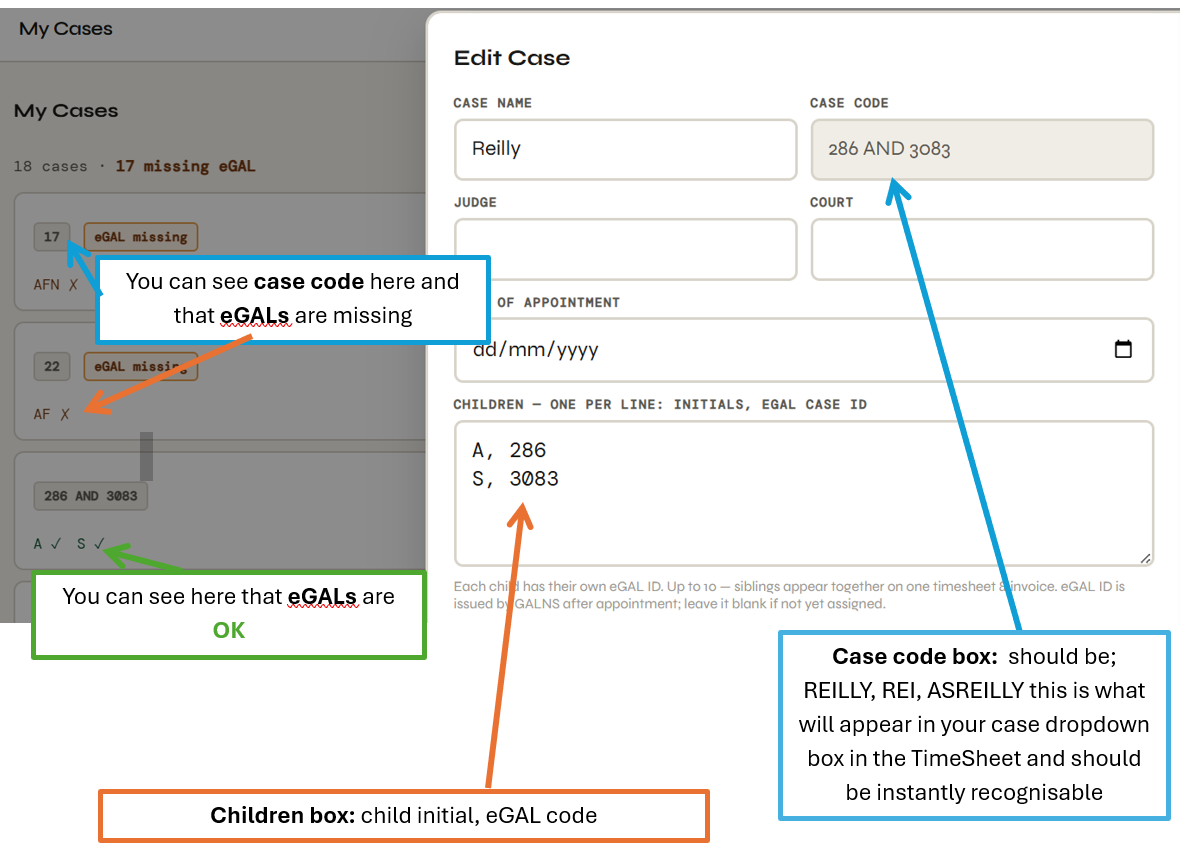
Case Code can't be changed once a case is saved, so it's worth getting right the first time.
Adding a timesheet entry
Pick the date and case, choose an activity (phone call, email, court, mileage, etc.), enter the start and finish time, and add any notes needed. Tap Add entry to save.
Logging mileage
Choose Mileage only, fill in the start/finish locations and distance, and the app works out the correct rate automatically. For a there-and-back trip, tick Also adding return journey to log both legs in one go.
Summary
The Summary tab shows your hours, mileage, and invoice total for the month. Use Window 23-30 to preview just the GALNS billing period where it applies.
Exporting for GALNS
Once a month is ready, use GALNS Zip to download your timesheets and invoices, or Export & email to also open a pre-filled email to payments@gal.gov.ie (you'll still need to attach the downloaded zip yourself).
Exporting timesheets & invoices for GALNS
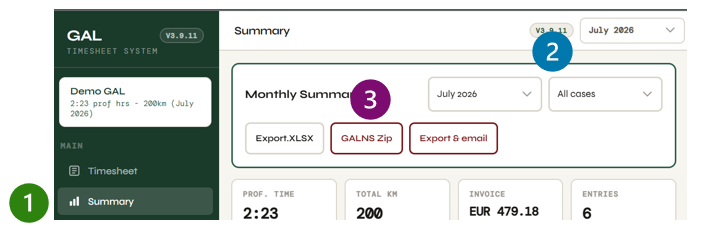
Step 1
- Go to Summary
- Select the month from either dropdown
- Check GALNS Zip - it should show green, meaning no flags or errors
Step 2
Tap Generate zip - this creates a zip file with all your timesheets & invoices and downloads it to your device. It's named
Surname_Initial_GALNS_MONTHYEAR - e.g. for Bob Hope, July 2026: Hope_B_GALNS_JULY2026.zip.Check any flagged entries shown before submitting - it's important these are reviewed before sending to GALNS.
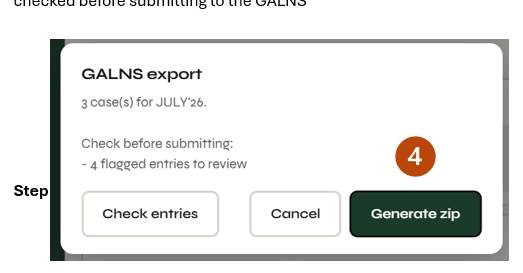
Do NOT use Export & email unless your admin has gone through this process with you.
Emailing GALNS
It's important this email is sent from the address you've provided to GALNS.
Send to: payments@gal.gov.ie
Subject: Surname_Initial_MonthYY TimeSheets & Invoices
e.g. Hope_B_July26 TimeSheets & Invoices
Subject: Surname_Initial_MonthYY TimeSheets & Invoices
e.g. Hope_B_July26 TimeSheets & Invoices
"Dear Payments Team, please find attached my timesheets and invoices for [date range]. Kind regards, [your name]"
The Export & email button fills this in for you automatically, so all you need to do is attach the zip and hit send - but don't use it until your admin has talked you through the process.
Invoices & reconciling a payment
Open Invoices in the sidebar (or More > Invoices on phone) to see your invoice history by month, grouped as outstanding or reconciled - no need to paste anything first. Tap a month to see the individual invoices.
Once GALNS sends a remittance email confirming payment, paste the whole email into the box on that same page and tap Check payment.
Each line shows as Matches (paid amount agrees with what was invoiced), a discrepancy (paid amount differs - worth checking why), or not tracked by this app (a payment from before this feature existed, or an invoice this app didn't generate) - tap Confirm received on those to record them anyway.
Only invoices generated through GALNS Zip/Export & email are tracked. If an older month shows nothing in Invoices, generate its GALNS Zip once from Summary to start tracking it - but only if the case list and entries for that month haven't changed since you originally submitted, or the recalculated amount may not match what was actually paid.
My Cases
Loading cases...
Controlled Admin
One row per case, or one row per child (repeat the same Case Code on sibling rows - they'll combine into one case). Case Code and eGAL Case ID are optional; re-upload later to add eGAL IDs once GALNS issues them. Download blank template
Sheet with ChildName + eGALCaseID columns (GALNS's own export works as-is). Matches by child name onto this GAL's existing cases.
Historical time-entry import (NGS/CoreTime)
One-off import of a GAL's "Job Review Report (Time Items)" export from a prior system. Upload the case list for this GAL first. Mileage is not imported (enter manually). Every row is checked before anything is written - anything Claude is not fully confident about (case not found, an activity/notes mismatch, a time overlap, a low-confidence guess) is excluded from the automatic import and listed separately for manual entry instead.
Only if the export spells a case name differently from the case list (e.g. a typo in the old system). One per line:
As written in the export = As written in the case list. Never guessed automatically - leave blank if unsure.Onboard / Update a GAL
Upload one completed setup template. A new person must be invited in Supabase first (that creates their profile); then upload their file here to fill it in. You'll see exactly what changes before anything saves.
Admin - All Users
Viewing as -
Loading...
-
Loading...